
Digital model analysis, with the points already placed
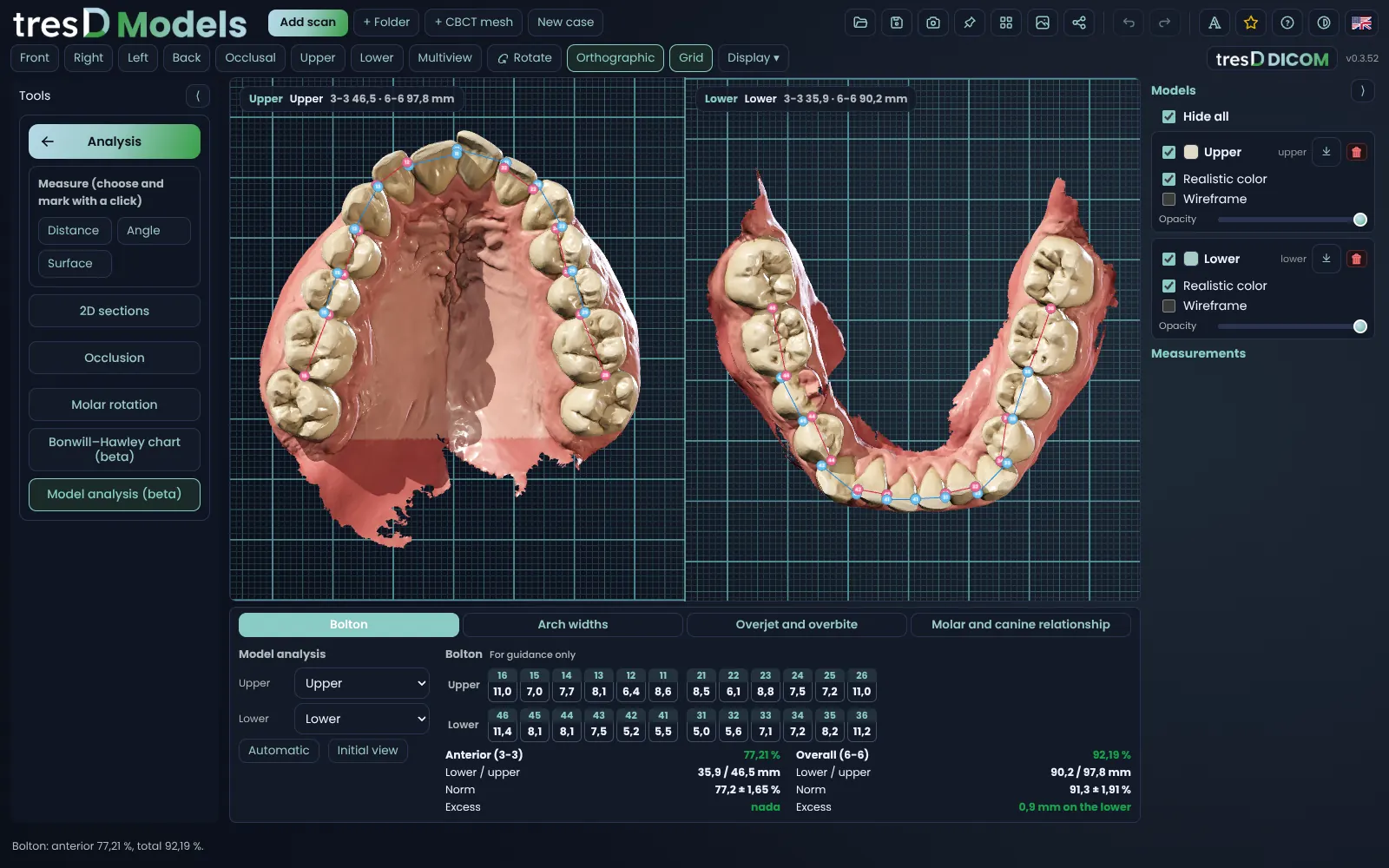
Open the upper and lower arch and tresD Models finds the teeth and proposes the points: the contacts for the Bolton analysis, the cusps for the arch widths, the incisal edges for overjet and overbite, and the cusps and grooves for the molar and canine relationship. Drag any point you are not happy with and the figures update at once. In your browser, free, and your scans are never uploaded anywhere.
Open my scans nowFree · nothing to install · your scans never leave your computer
See it in action
Four analyses in one tool
| Tab | What it measures |
|---|---|
| «Bolton» | The mesiodistal width of the twelve teeth of each arch (first molar to first molar), from their contact points. With them, the anterior (3-3) and overall (6-6) ratios against the Bolton norm (77.2 ± 1.65 % and 91.3 ± 1.91 %) and how many millimetres are in excess, and in which arch. |
| «Arch widths» | The intercanine width (between the canine cusps) and the intermolar width, at the mesiobuccal cusps and at the central fossae of the first molars, in the upper and lower arch. |
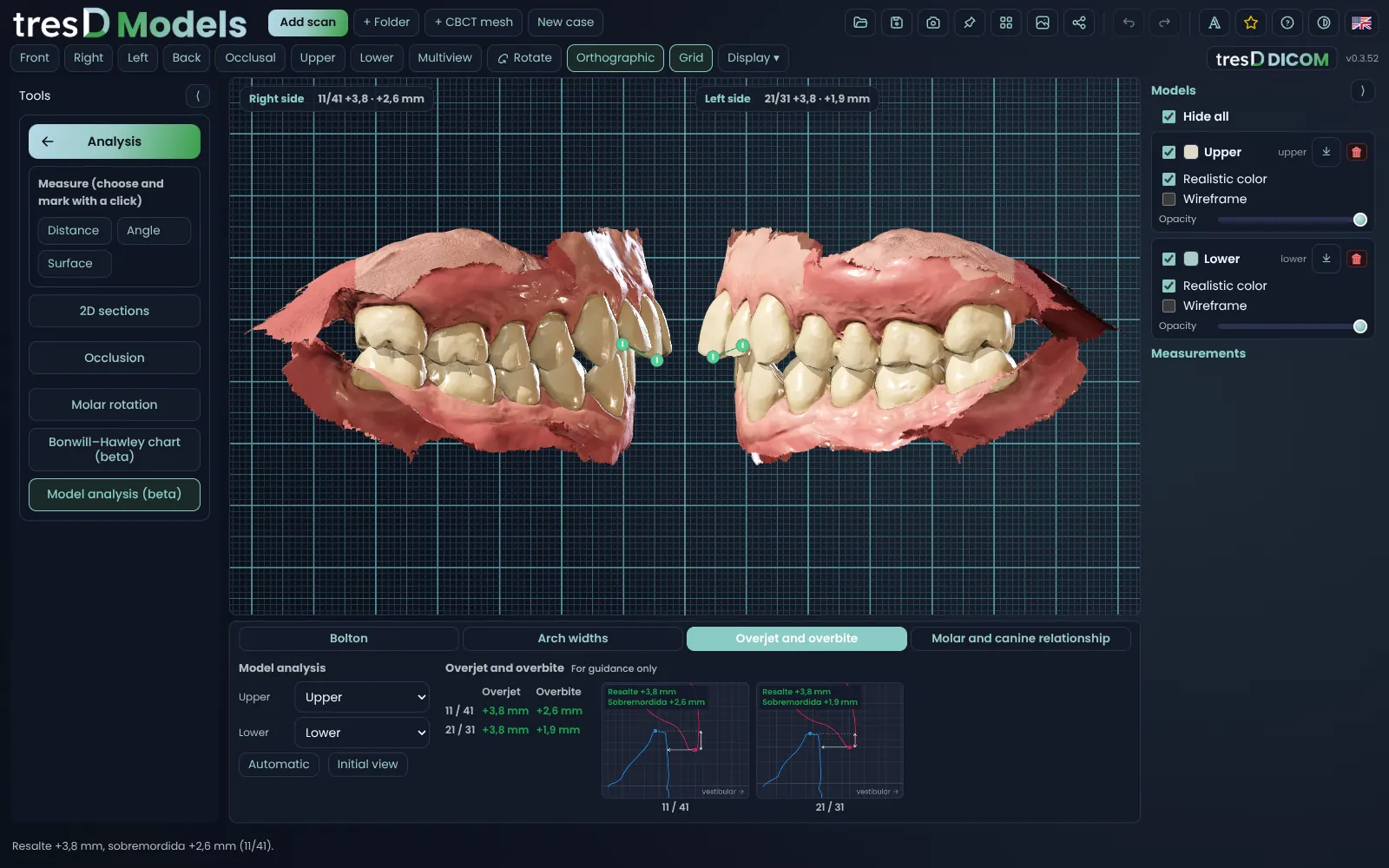
| «Overjet and overbite» | Both arches together, from the front, with the incisal edge of 11, 21, 31 and 41. Below, the sagittal section of each pair (11/41 and 21/31) with overjet and overbite dimensioned. The points can be moved in the viewer and in the section. |
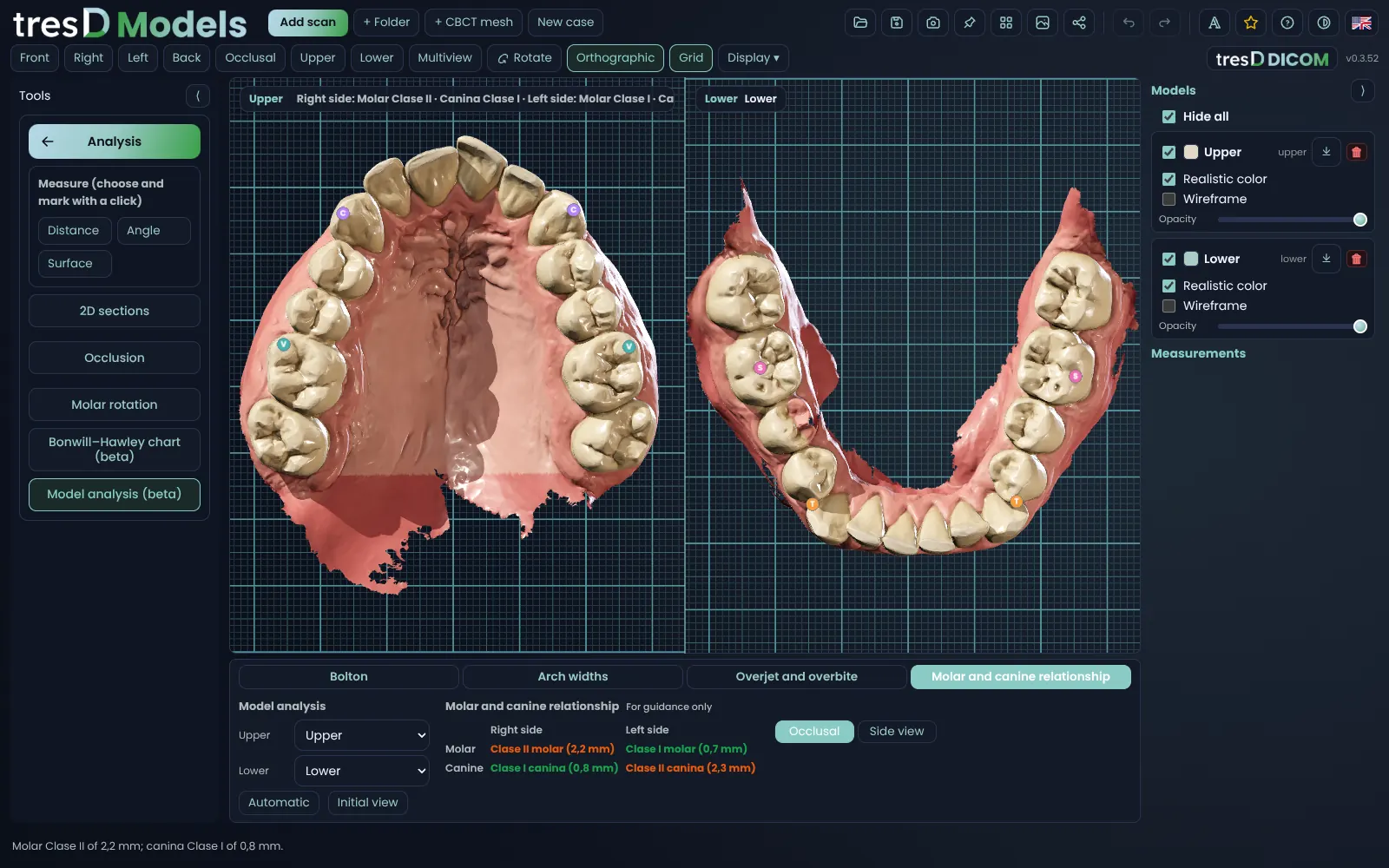
| «Molar and canine relationship» | From occlusal or from the side, the distance from the mesiobuccal cusp of 16 to the buccal groove of 46, and from the cusp of 13 to the embrasure between 43 and 44, along the lower arch, on each side. With its class (I, II or III), for guidance only. |
The colours give you a quick read: green, within the usual range; orange, somewhat outside; red, further. Everything is indicative: the program draws and measures, and you decide what it means.
The points, proposed and by hand
When you open the analysis, tresD Models finds the teeth of each arch and proposes all the points. If one is not where you would put it, drag it, or click it and then click the spot on the model where it goes. «Automatic» proposes them again and «Initial view» puts the models back as they were when the tab opened. The points are saved with the case and the analysis goes into the report, with its four tables.
Also in «Analysis»
- «Occlusion»: the occlusogram, the contacts between both arches in colour.
- «Molar rotation»: the rotation of each first molar, in degrees.
- «Bonwill–Hawley chart (beta)»: the arch form drawn on the upper arch and as a PDF at 1:1 scale, to look at on paper.
- «2D sections» and the distance, angle and surface measurements.
In pictures
Step by step
Open the upper and lower arch
Go to tresdmodels.com/app and click «Add scan» with both arches in their bite, in STL, PLY or OBJ. With a single arch you can still measure its widths and its teeth for Bolton.
Click «Model analysis (beta)»
In the menu on the left, «Analysis» and, inside it, «Model analysis (beta)». In a few seconds the teeth appear with their points and, below the viewer, the four tabs.
Check the points
Look at each point on the model and drag any that is off. The figures in the table update at the same time. «Automatic» proposes them again.
Go through the tabs
«Bolton», «Arch widths», «Overjet and overbite» and «Molar and canine relationship»: each one sets the models in the view it needs.
Put it in the report
Save the case to keep the points. Under «Share» (at the top), the «Case report (PDF)» includes a page with the four tables.
If something goes wrong
It says the upper and lower arch are needed in their bite
Overjet, overbite and the molar relationship need both arches in their bite. Open them as the scanner exports them, from the same scan.
A point has landed on another tooth
It happens with crowding, missing teeth or remnants in the scan. Drag it into place, or click it and then the model; the others do not move.
The relationship looks odd
Check that the arches are in their bite (the status bar warns if they do not seem to be) and that 16, 46, 13 and the 43-44 embrasure are marked correctly.
Watch it on video
The tresD Models tutorials on YouTube, step by step. They are in Spanish: turn on the YouTube subtitles and auto-translate them.
Common questions
Is it free?
Yes: no sign-up, no licences and no limit on models.
Are the scans uploaded to a server?
No. The points and the measurements are computed on your computer, inside the browser.
Which norm does the Bolton analysis use?
Bolton's: 77.2 ± 1.65 % for the anterior ratio (3-3) and 91.3 ± 1.91 % for the overall ratio (6-6). Green within one standard deviation; orange within two; red beyond.
Can I measure overjet on an STL?
Yes: with the upper and lower arch in their bite, the «Overjet and overbite» tab measures it on the sagittal section of 11/41 and 21/31.
Does it work with any scanner?
With any scanner that exports STL, PLY or OBJ: iTero, 3Shape TRIOS, Medit and others.
Are the measurements exact?
They are indicative: they depend on the points and on the scan. tresD Models is a visualisation and teaching tool.
Other guides
Features step by step
Try it with your scans
Free, no sign-up and nothing to install. Your scans never leave your computer.
Open my scans now